
A little know-how.
How to place home Wi-Fi equipment
Use distance, walls, wired backhaul and device locations to plan coverage.
Your practical checklist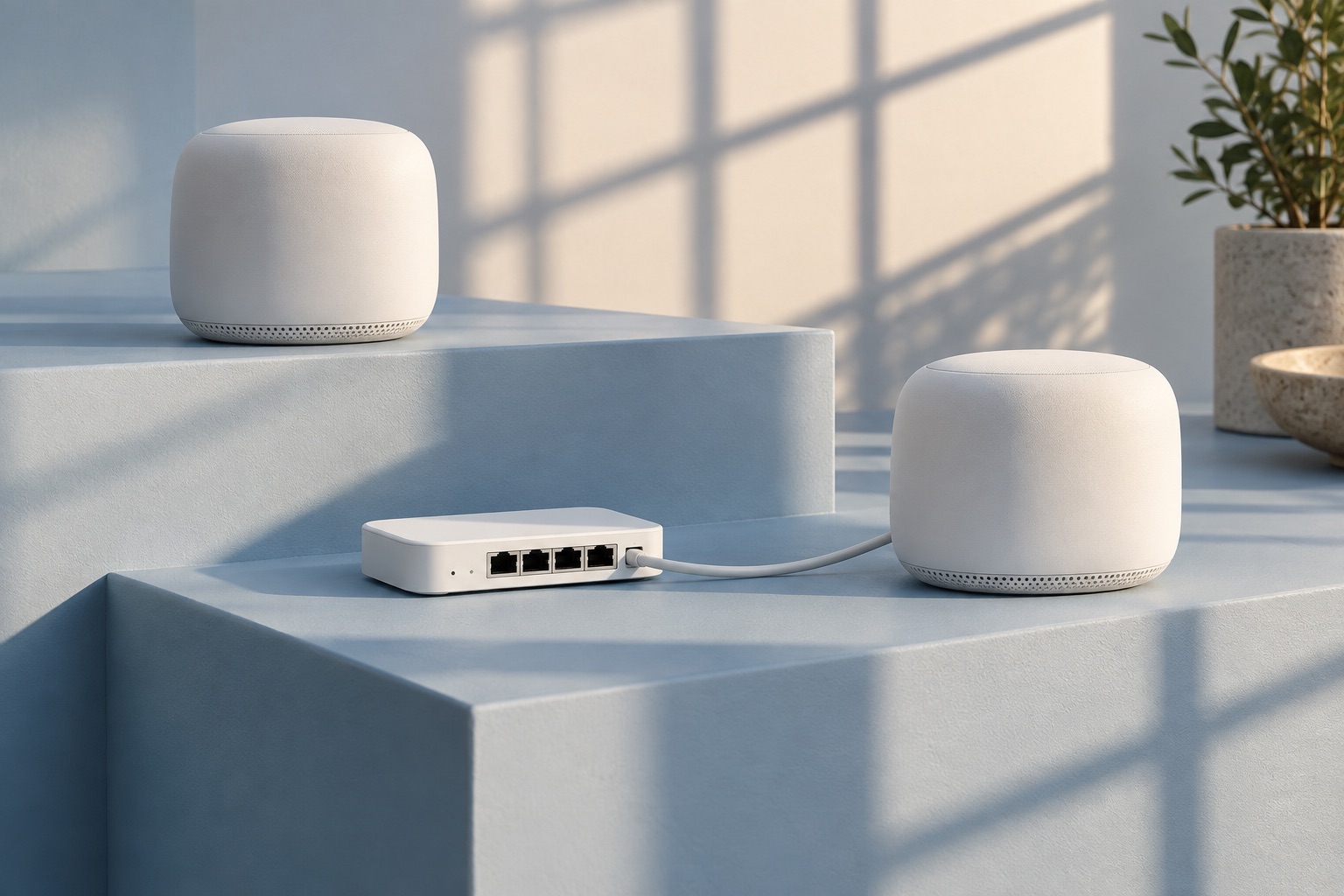
Start here
Choose three places where you use the network and measure them consistently. Compare a problem room with a position near the router, then change one placement at a time. The aim is a reliable task in each room, not the largest speed-test number.
Make a baseline you can repeat
Mark the router, any mesh nodes and three test spots on a rough floor plan: near the router, your main work position and the unreliable room. Mark thick walls, floors, large appliances and enclosed cupboards between them. Materials and interference matter more than a universal distance rule.
- Open a browser-based internet speed test or a speed-test app on the phone or laptop you are testing. Use the same device, position, orientation, tool and server if selectable. Make sure the phone is using Wi-Fi rather than mobile data. Record whether a VPN is active and keep that state consistent. Pause optional large downloads and backups while establishing the baseline.
- Press the test’s Start/Go control and wait for both download and upload to finish. At each spot, run three tests and record the middle download and upload result plus the range. Note latency in milliseconds if shown. Mbps means megabits per second; latency is delay, not transfer speed. Also note disconnects or large swings, which an average can hide.
- Repeat a real task, such as a ten-minute video call or playing your usual stream. Write a pass criterion first: for example, “no reconnects or missing speech during this call.” Test again at the time of day the problem usually appears.
| Spot / layout | Download; upload | Task result |
|---|---|---|
| Desk / router in cupboard | 28; 8 Mbps | Call froze twice |
| Desk / router on open shelf | 91; 18 Mbps | No freezes in 10 minutes |
| Near router / open shelf | 180; 19 Mbps | No reconnects |
Copy the recording format, not the numbers. Keep the test ranges, device and time alongside it. These example readings illustrate a placement improvement; they are not measurements or a speed promise.
Separate the wireless link from the internet service
An internet speed test crosses both your Wi-Fi and your provider’s connection. It cannot identify the failing link on its own. If available, use the router app’s internet/WAN speed test to measure from the router, then compare with your device test. A mesh-connection test measures something different again: the link between nodes.
- Only the distant room is poor: repeat near the router with the same device. A large, repeatable improvement points towards coverage or interference. It is evidence to try placement, not proof that you need a new router.
- Near-router Wi-Fi is poor too: connect a computer to a router LAN port with Ethernet and turn that computer’s Wi-Fi off for the test. Check the Ethernet link speed; a 100 Mbit/s adapter or damaged cable can cap this comparison. Test the same service and time window.
- Wired and wireless are both poor: check for competing downloads, a busy backup, the provider’s service status and the speed included in your plan. If repeated wired tests remain poor with a suitable link, give the provider those times and results. Moving a mesh node is unlikely to fix that path.
- One device is poor while another works at the same spot: inspect that device’s updates, power-saving mode, VPN and Wi-Fi capabilities. Test one change at a time. If just one app fails while others work, investigate the app or service before changing the network.
Without Ethernet or a router-side test, use a second device and repeated near-router readings to narrow the problem, but record that you have not isolated the internet link. A local file copy from an already available wired computer or NAS can test the home network without the internet; its storage speed may still be the limit.
Move the router, then repeat the route
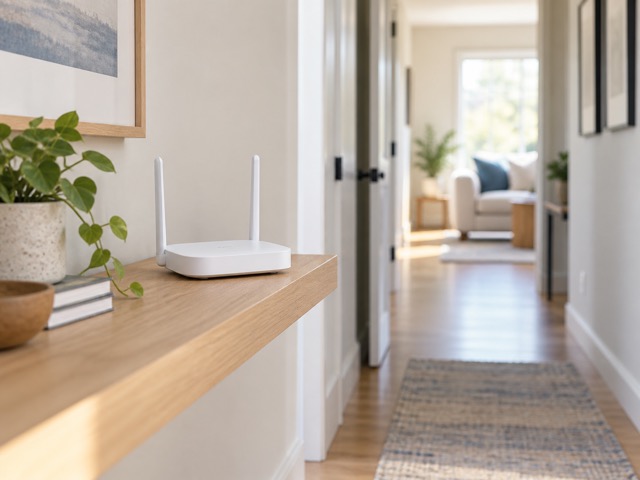
Try an open shelf or another permitted position nearer the rooms you use. Keep the router out of a cupboard, away from large metal objects and with its ventilation clear. Use the manufacturer’s intended orientation. Do not pull a fixed fibre connection or relocate provider equipment beyond what its cabling permits.
Make one change and repeat the same three-location tests. Keep the new position if the weak location improves consistently and the other important rooms still pass their tasks. If results overlap the previous range, treat the change as inconclusive and repeat at the usual busy time.
Where the router lets you choose bands, a temporary 2.4 GHz versus 5 GHz/6 GHz comparison can help: lower-frequency coverage may reach a difficult spot while a higher band performs better nearby. Capabilities, congestion and walls vary. Do not disable working bands permanently on the strength of one reading.
Give a mesh node a usable path back
Backhaul is the connection from a mesh node towards the main router. A wireless node placed inside a dead spot still has to receive a useful upstream signal. Start between the router and the weak area, where the node can communicate reliably, then use the app’s mesh/link test and repeat the room tests. Move it towards the router if the backhaul is weak, even if that takes it farther from the target room.
Ethernet backhaul carries that node-to-router traffic over cable, leaving less work for the wireless link. It requires compatible nodes with Ethernet ports and a supported wiring layout. Usually the node or its switch connects downstream of the main router; confirm the model’s topology and that its app reports a wired link. A cable plugged into a device port does not prove backhaul is active.
A temporary, safely routed Ethernet cable can establish whether backhaul is the bottleneck before you plan permanent wiring. If wired backhaul fixes the room, retain that approach where practical. If it does not, retest the client, node placement and application. Extra nodes share radio space and can make things worse; add one only for a measured gap.
Keep the floor plan, readings and the winning placement. Your test is complete when the same device passes the intended task in each important spot at the troublesome time. A newer Wi-Fi standard is useful only when it addresses a limit you found and the relevant devices support it.
Put it into practice