
A little know-how.
How to plan a home NAS
Work out capacity, redundancy, backup and network limits before buying an enclosure or drives.
Your practical checklist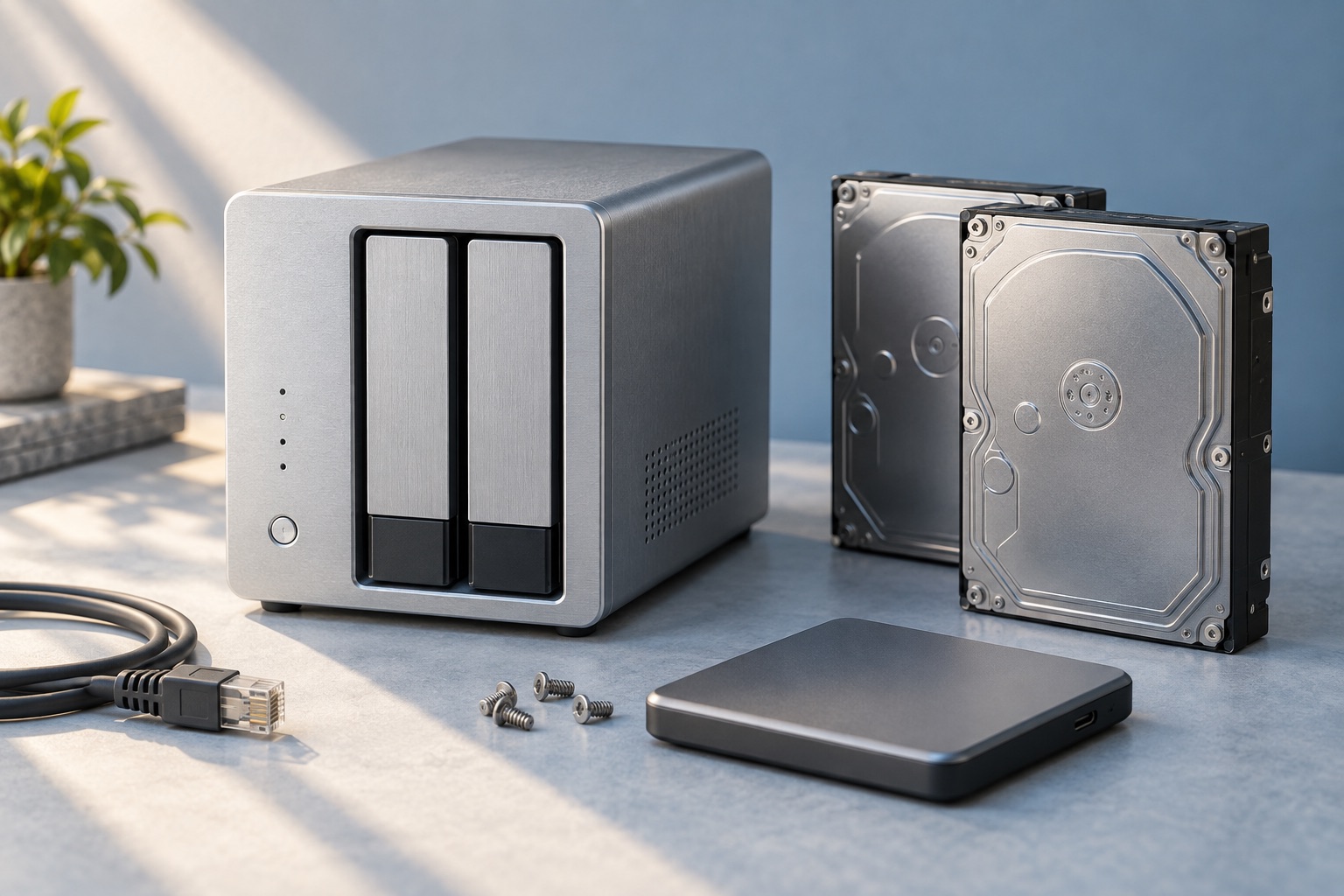
Start here
A NAS is a small computer that shares storage over your network. It makes sense when several devices need the same files or unattended backups. Finish with a one-page plan for capacity, recovery, access and running costs; a USB drive may be the better answer for one computer.
Budget capacity beyond the first copy
Measure the source folders with Properties in Windows or Get Info in Finder. Add expected computer-backup retention separately: several months of changed files can be larger than one current copy. Avoid counting duplicates as growth, and distinguish TB from TiB when comparing the device’s display with drive labels.
| Allowance | Calculation |
|---|---|
| Current files | Photos 1.2 + video 1.0 + documents 0.3 = 2.5 TB |
| New files | 0.5 TB/year × 3 years = 1.5 TB |
| Backup history and snapshots | 1.0 TB budget; actual use depends on change rate and retention |
| Planned stored data | 2.5 + 1.5 + 1.0 = 5.0 TB |
| Working reserve | Keep 20% of the resulting volume free: 5.0 ÷ 0.8 = 6.25 TB volume target |
Two 8 TB drives in a simple mirror offer roughly one drive’s nominal capacity, not 16 TB. After system partitions, filesystem metadata and unit conversion, the available volume is smaller. Check the enclosure’s capacity calculator and filesystem overhead, then compare its predicted usable volume with the 6.25 TB target in the same units. The reserve above is a chosen planning allowance, not a guarantee that this pair will fit every configuration.
Record the supported drive models and expansion method for the exact enclosure. Replacing both drives in a full two-bay mirror is different from adding a drive to an empty bay. Expansion can require sequential rebuilds, extra time and a verified backup.
Choose how you will recover
Mirroring or parity RAID can keep files available after certain drive failures. It also reproduces an accidental deletion and does not protect against theft, fire or every ransomware event. Snapshots retain earlier states where supported, but snapshots stored only inside the NAS still depend on that NAS.
Write two targets: the most work you can lose and the longest you can be without the files. “At most one day of edits; essential documents restored by the next evening” suggests at least daily backups and a small priority restore set. A large media library can be restored later.
Plan a versioned copy on a separate external drive or backup service, with an off-site copy for irreplaceable files. For a removable backup, connect it for the backup job and disconnect it after completion; a permanently writable copy is exposed to more of the same incidents. Account for backup capacity and cloud upload time. The portable SSD guide covers checking a removable drive’s format and connection.
- Create a small test folder containing a document, a photo and a subfolder. Back it up, change the document and run another backup so there is an earlier version to recover.
- Use the backup application’s Restore function to recover the earlier document and folder into a new location. Do not overwrite the working originals. Open the files and confirm their content, names and folder structure.
- Record the elapsed time, backup date used and any password or key required. Store recovery instructions and encryption keys separately from the NAS. If the restore fails or only the newest version exists, fix permissions, retention or the backup job and repeat. Schedule this check periodically and after a backup configuration change.
Do not pull a live drive to “test RAID” while learning. A restore exercise with disposable test files checks the recovery path without deliberately degrading the array.
Find the network ceiling
Map NAS → Ethernet cable → switch/router → computer adapter. Record each port’s negotiated link speed in the devices’ network settings, not merely the router’s Wi-Fi marketing rate. A 1 Gbit/s wired link has a raw ceiling of 125 MB/s before overhead; the disks, file sizes and client may make real copies slower. A 2.5 Gbit/s NAS port cannot remove a 1 Gbit/s link elsewhere.
If you already have shared storage, time a representative large-folder copy from a wired computer, then repeat over Wi-Fi at the desk. If only the wireless copy is slow, improve home Wi-Fi placement before replacing the NAS. If both are slow, inspect link negotiation, source-drive speed and competing backup jobs. A faster internet subscription does not speed up a copy entirely inside your home.
Assign the routine jobs
- Name one person to install supported system/app updates, review security notices and check that backups completed. Enable notifications and send a test alert so a failed drive or backup does not remain invisible.
- Use individual accounts with access only to the folders each person needs. Keep administration separate from everyday file access, use unique passwords and enable multi-factor authentication where supported.
- Keep access local unless remote use is necessary. Do not expose file-sharing or the administration page through casual router port forwarding. For remote access, choose a maintained VPN or supported secure remote service, understand who can connect and test revocation of an account.
- Choose a ventilated location where drive noise is acceptable. Check drive health alerts and the model’s supported maintenance schedule. Budget for a compatible UPS if power-loss protection matters, including USB/network shutdown support rather than assuming any battery unit can signal a safe shutdown.
Price the complete plan
Make a cost row for the enclosure, compatible drives, separate backup storage or subscription, any network adapter/switch, optional UPS and replacement drives. Add electricity: an illustrative 25 W average load uses 0.025 kW × 24 × 365 = 219 kWh per year; multiply by your tariff. This is an assumption, not a measured NAS power figure.
Compare that total and the maintenance time with using an existing computer plus a backed-up external drive. Your plan is ready when it names the users, services, usable-capacity target, backup destination and schedule, restore target, network path, owner and full cost. If you cannot name a benefit that needs shared always-available storage, keep the simpler arrangement.
Put it into practice