
A little know-how.
RAM or storage: what do you actually need?
Two different jobs, two different buying decisions. Find the constraint before spending more.
Your practical checklist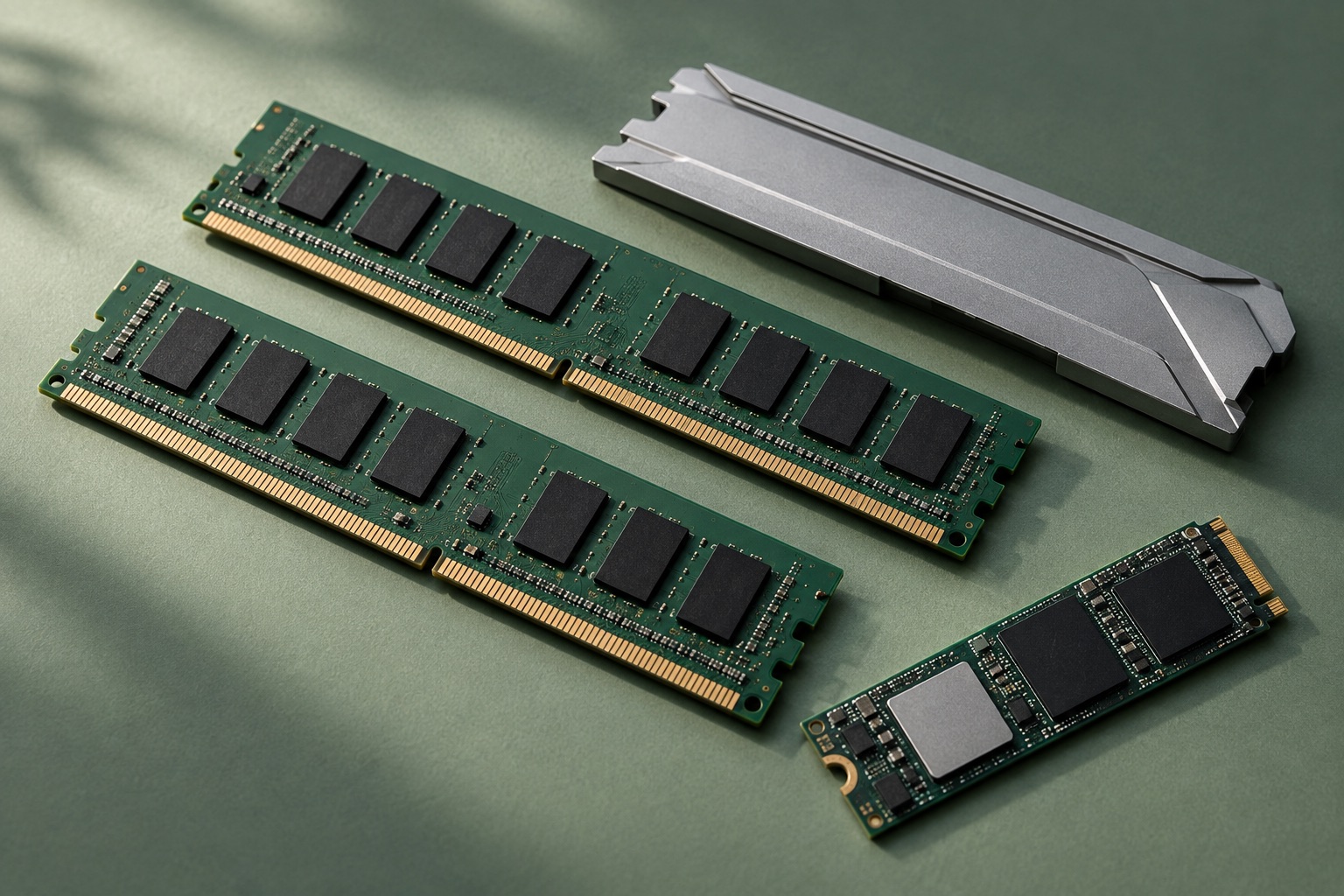
Start here
Measure the slowdown while it happens. RAM holds the working data of running apps; storage holds files and software between sessions. The right decision may be to close a troublesome app, free file space or keep the machine as it is. One high usage percentage is not a diagnosis.
Reproduce one slow task
Write down what becomes slow: switching tabs, opening a project, exporting video or saving a file. Restart if the machine has been running unusually badly, let startup activity settle, then open your normal apps and repeat the same task. Record its duration or a visible symptom such as repeated pauses while switching windows.
Watch the computer during the pause, not only at idle afterwards. Note whether an update, cloud sync or backup is running. Save work before closing anything; do not terminate unfamiliar system processes just because they appear near the top of a list.
Read Windows 11 while you work
- Press Ctrl + Shift + Esc to open Task Manager. Under Processes, sort by Memory to identify the apps using most RAM. Expand an app group if helpful, then return to the normal task. An app being largest does not by itself mean it is faulty.
- Open Performance → Memory. Note the installed amount, Available memory and Committed figure during the slowdown. Committed shows memory Windows has promised against a limit backed by RAM and the page file; it is not simply the amount currently in physical RAM. Very little available memory or commitment close to its limit, together with repeatable stalls, warrants a closer look.
- Check Performance → CPU and Disk at the same time. Disk active time near 100% means the drive is busy, not that its capacity is full. A large file copy, antivirus scan or paging can each cause disk work; a high CPU load may instead explain an export taking time.
- Close one nonessential app or reduce a heavy set of browser tabs, then repeat the task. If pauses ease repeatedly as memory demand falls, reducing the workload or adding supported RAM may help. If disk activity stays high or one app remains slow, investigate that app, background work or the drive rather than buying RAM from the percentage alone.
Windows uses spare RAM for caching, which can be reclaimed. Do not disable the page file to make a number look better: it helps back committed memory and some applications rely on it. These readings narrow the cause; they do not establish a universal RAM threshold.
Read memory pressure on a Mac
Open Applications → Utilities → Activity Monitor and select Memory. Keep it visible while repeating the task. The Memory Pressure graph combines several signals about how well available memory is serving the workload. Green with smooth operation is a reason to leave the configuration alone, even if much of the RAM is in use.
Sustained yellow or red pressure during the stalls, especially as Swap Used grows, is stronger evidence of a memory constraint. Swap uses the startup drive to hold some memory contents. Some swap can remain after an earlier heavy workload, so a nonzero value is not by itself a fault. Compressed memory and cached files are also normal parts of memory management.
Sort the Memory column to find the largest apps, save work, quit one optional app and repeat. If pressure and responsiveness improve together on repeated attempts, record that result. If pressure stays green during the slowdown, inspect the CPU and Disk tabs and check the app’s own workload. A slow remote website may be a network or service issue.
Measure free storage separately
On Windows 11, open Settings → System → Storage for the system drive’s categories; File Explorer → This PC shows free space on each drive. On recent macOS versions, open System Settings → General → Storage. Record the actual available space and any low-space warning, not just a percentage.
Compare free space with the job ahead: downloading an update or exporting a video can need temporary space as well as the finished file. Use the app or update’s stated space requirement and leave room for continuing work. There is no single free-space percentage that guarantees every workload will run smoothly.
Review large personal files and unused applications. Back up files before removing them, use an app’s supported library-move or uninstall command, and review the contents before emptying the Recycle Bin or Trash. Do not delete system folders or blindly select Downloads in a cleanup tool. Repeat the original task after freeing space.
Verify the upgrade at the exact-model level
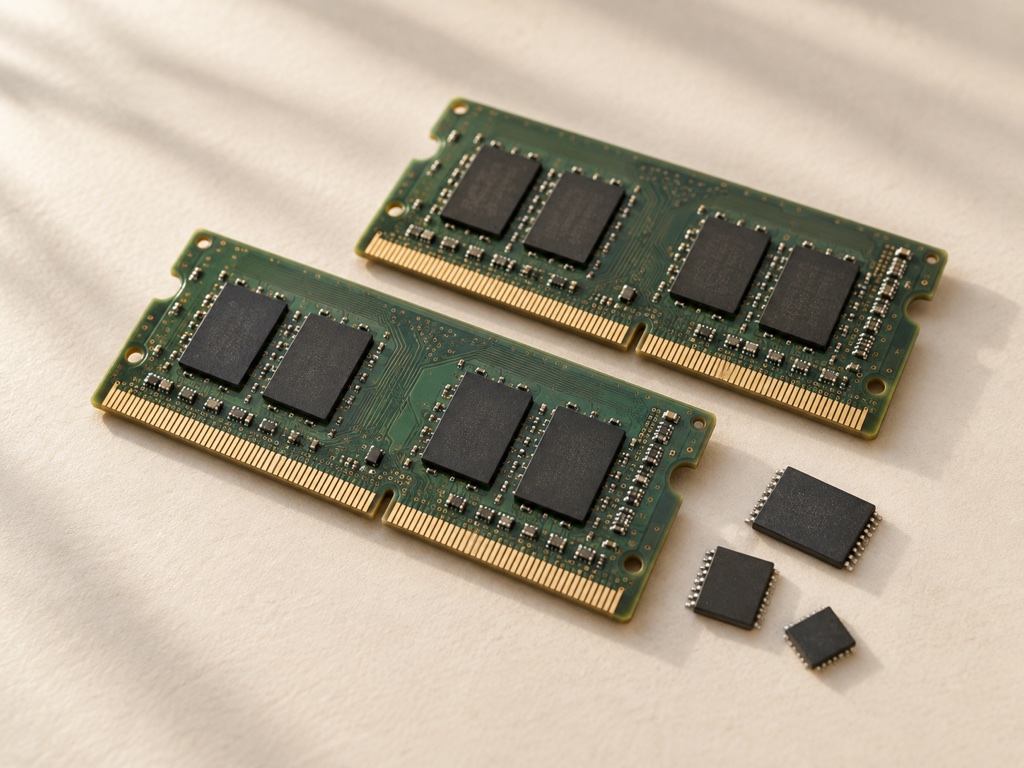
In Windows, use Settings → System → About and the manufacturer’s model/serial label; on a Mac, use Apple menu → About This Mac and System Information. Record the complete model identifier and current configuration. A family name such as “13-inch laptop” is not precise enough.
In that model’s service manual and supported-parts specifications, find whether memory is socketed or soldered, the maximum capacity, number of slots and required memory type. For storage, confirm whether it is replaceable, its interface and physical size, and any capacity or firmware restrictions. Task Manager’s slots figure alone does not establish upgradeability.
Apple-silicon Macs have no user-installable RAM upgrade. Other computers may also have soldered memory or storage. If the manual says the part is not replaceable, do not order a module that merely matches the advertised speed. For a supported internal upgrade, budget for installation, a verified backup, recovery media or OS migration, and any encryption recovery key. If the procedure is outside your experience, include qualified service in the comparison.
Choose the smallest change that passes the task
| Evidence during the task | Next action |
|---|---|
| Memory pressure and stalls ease when an optional app closes | Keep the smaller workload if practical; otherwise price a supported RAM upgrade or a replacement with sufficient fixed memory. |
| Free space cannot hold the job or updates | Remove or offload backed-up files, then repeat. An external drive adds file space but does not add physical RAM. |
| CPU or disk is busy while memory and capacity are adequate | Identify the app or background job; wait for legitimate maintenance and repeat. Persistent errors or unusual drive behaviour need diagnosis and a verified backup. |
| The ordinary workload is responsive | Keep the current computer. A nearly full-looking RAM graph alone is not a reason to spend. |
An external drive helps with files you can relocate, such as finished videos. Move application libraries through their supported settings and confirm they reopen from the new location. Keep a separate backup if the external drive becomes the only working copy; our portable SSD guide explains capacity, format and transfer checks.
Repeat the original task at least twice after the change, using the same files, apps and power mode. Record the timings or stalls and the relevant memory/storage readings. If the symptom remains, the evidence has not justified the proposed upgrade yet. Keep the notes so your next troubleshooting step starts from an observed limit.
Put it into practice