
A little know-how.
How to choose a portable SSD
Match capacity, port speed, sustained performance and durability to the work you actually move.
Your practical checklist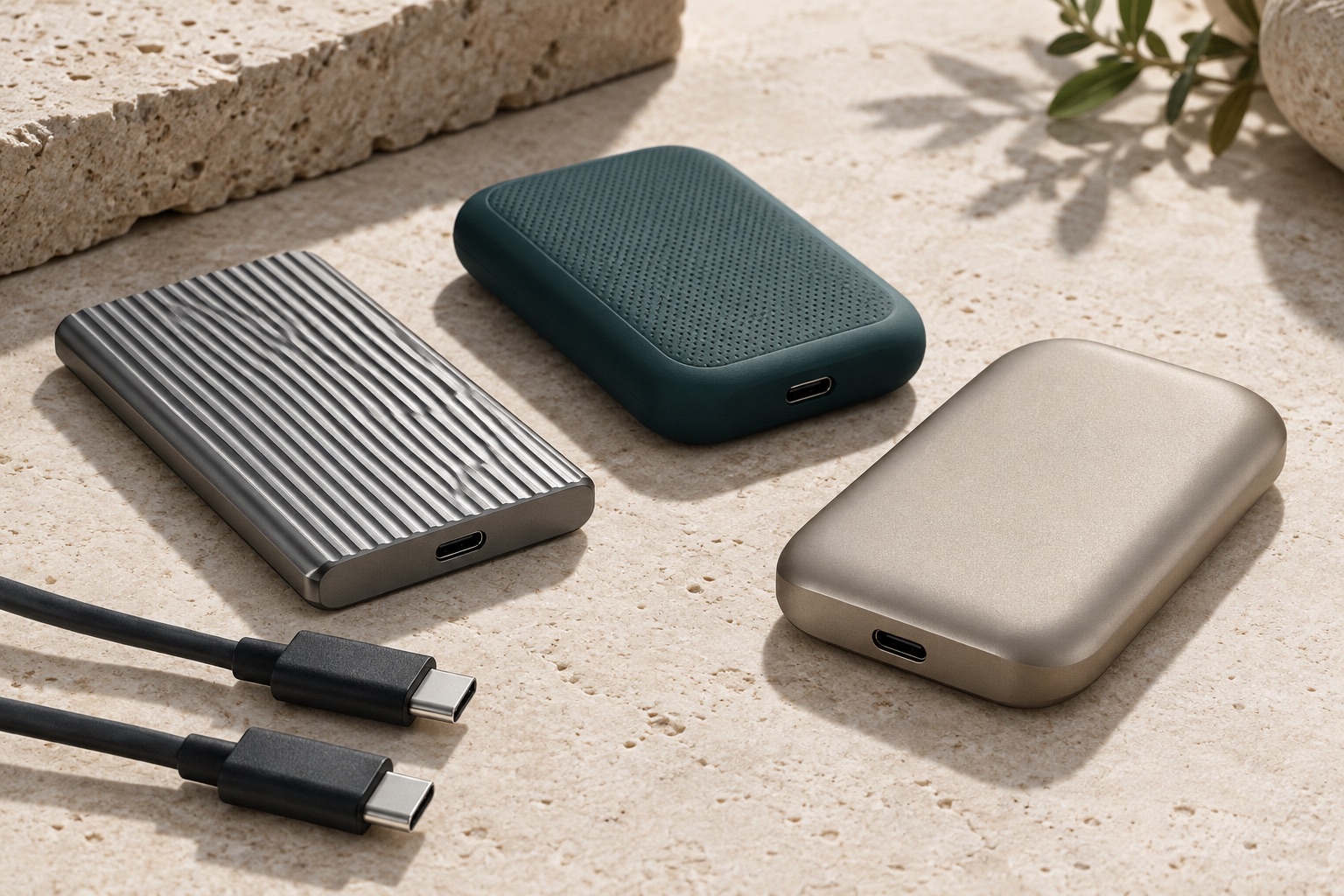
Start here
List the devices the drive must connect to, the files it must hold and the time you can allow for a transfer. Choose for the slowest link in that real workflow. If your existing drive meets those requirements and has a separate backup, there may be nothing to replace.
Put a number on the files
Select the folders you actually need to carry. In Windows File Explorer, right-click and choose Properties; on a Mac, use Finder → File → Get Info. Use the logical file size for planning, and download cloud-only files first if you need them offline. Do not count the same archive twice because it appears in two synced folders.
Manufacturers usually count 1 TB as 1,000,000,000,000 bytes. Some software reports binary units, where 1 TiB is 1,099,511,627,776 bytes, or labels a binary figure “GB.” The smaller displayed number does not by itself mean capacity is missing.
Follow the whole USB path
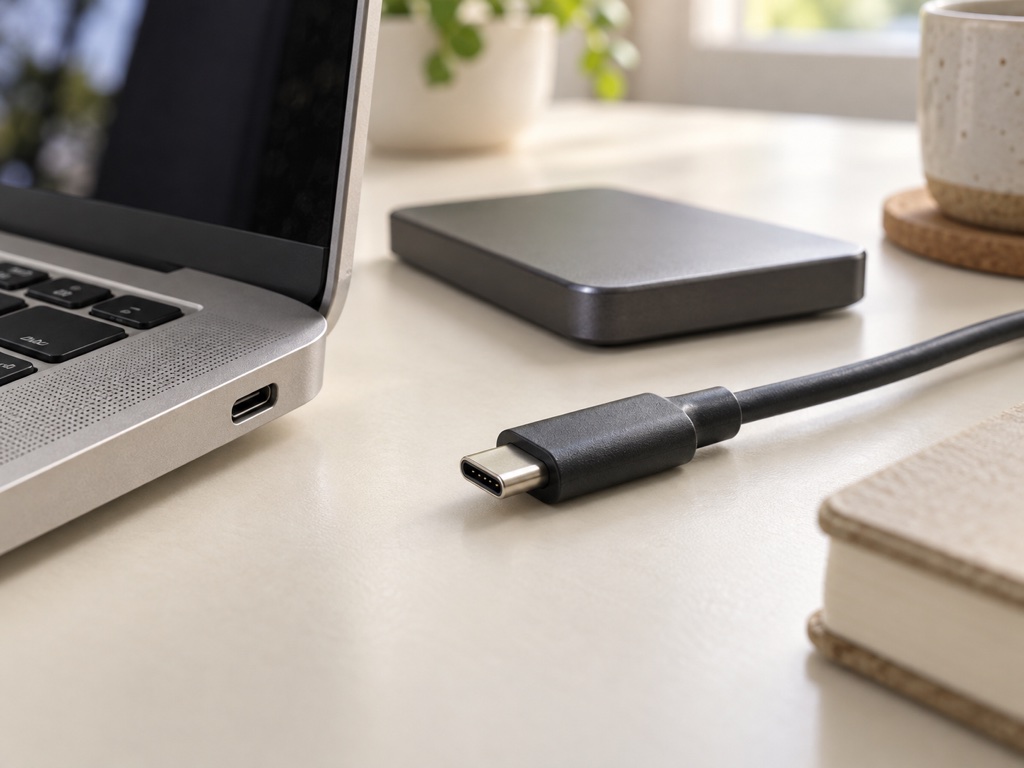
Write down computer port → dock port, if any → cable → drive. Use the exact computer model and port diagram, the dock manual and the cable’s stated data rating. Record a transfer rate and protocol at every point. A charging wattage or the shape of a USB-C plug does not establish data speed.
| Connection | Stated capability |
|---|---|
| Laptop port | USB 10 Gbit/s |
| Dock’s downstream port | USB 5 Gbit/s |
| Cable | USB 10 Gbit/s data |
| Drive | USB 20 Gbit/s (USB 3.2 Gen 2×2) |
This path has a 5 Gbit/s link. Connecting directly removes that dock limit, but the laptop still limits the USB drive to their common supported mode. Also check protocol, not just the biggest number: a Thunderbolt/USB4 40 Gbit/s port does not automatically support USB 3.2 Gen 2×2 at 20 Gbit/s. Look for explicit Gen 2×2 support if that is how the drive reaches its headline speed.
A dock can share bandwidth among storage, networking and other connected devices. If a transfer is unexpectedly slow, repeat it directly using the drive’s supplied data cable, then reconnect the dock. Change one link at a time.
Turn speed into a useful deadline
Gbit/s measures billions of bits per second; MB/s measures millions of bytes per second. There are eight bits in a byte. A 10 Gbit/s link therefore has a simple arithmetic ceiling of 1,250 MB/s before encoding, protocol and other overheads. That is not a promised file-copy speed.
Peak figures often describe sequential transfers under favourable conditions. The drive may write quickly into a cache, then slow once that cache fills. Heat can also reduce speed. Many small files, a slow source drive, encryption or a nearly full destination can dominate the result.
- Copy a backed-up folder representative of your work to the drive; do not move your only copy. Note its size, free space, connection path and elapsed time until the copy completes. Test the largest ordinary job, not just a tiny file that fits in cache.
- After the drive has been busy, copy a different representative folder and record the result. Compare the whole-job time with your deadline. If it slows markedly, let the enclosure cool in an open, ventilated position and repeat on the direct connection.
- Eject the drive using the operating system, reconnect it and open several copied files, including a large one. Check the folder’s file count and size. This is a practical spot check, not proof that every byte is intact; keep the original and backup.
Choose a filesystem for all intended devices
| Use | Starting choice and limitation |
|---|---|
| Recent Macs only | APFS suits Mac SSD use. Windows does not natively read it. Mac applications such as Final Cut Pro can have specific format requirements. |
| Windows only | NTFS is the usual choice. A Mac may read it but does not normally write to it without additional software. |
| Files exchanged between Windows and Mac | exFAT supports large files and native reading/writing on both. Eject properly; do not unplug during a write. |
| Camera, console, TV or backup application | Use the exact device/app requirement. It may need its own formatting, encryption or dedicated drive; computer compatibility does not settle this. |
If the existing format works, keep it. To inspect it, open the drive’s Properties in Windows or select its volume in Mac Disk Utility and read Format. Copy a spare file from each intended computer, open it on the other and try saving a change. A read-only result can indicate a format or permissions issue rather than a broken SSD.
On Windows, right-click Start → Disk Management, locate that verified external volume, right-click it → Format, choose the intended filesystem and a clear label, then review the warning. On a Mac, open Disk Utility → View → Show All Devices, select the verified external device, choose Erase and set the format; for a modern Mac/PC data drive, GUID Partition Map is the usual scheme. Erasing the physical device removes its volumes. Special-purpose devices may require another scheme, so use their requirements. Repeat the spare-file test afterwards.
Give the portable copy a separate backup
A second folder or partition on the same SSD will disappear with the drive. Keep another copy on a different device stored separately, or in a versioned backup service. Synchronisation alone can spread deletion to every synced copy. Set a schedule that matches how much work you could afford to lose, such as after each day’s edits.
Restore a small folder from that backup to a new location and open its files. Keep any encryption recovery key somewhere other than only on the SSD. If you offload originals from the laptop to make space, the portable SSD becomes the primary copy and still needs this separate backup. A shared archive may eventually justify a home NAS plan, but carrying files does not require one.
For travel, check the model’s stated water/dust conditions, operating temperatures and warranty exclusions. A durability rating is not a backup and may depend on covers being closed. Keep the connector unstressed and the enclosure able to shed heat.
Put it into practice