
Product spotlight
TESmart HKS202-P23: two computers, one shared desk
Share two HDMI monitors and USB accessories. Plan the display outputs, cables and switching modes first.
Researched · Researched buying guide
The short answer
Choose HKS202-P23 when both computers can supply two suitable video outputs and you want to share the screens and peripherals. It does not add display outputs to a laptop or provide a one-cable USB-C docking connection.
For switching between computers
TESmart HKS202-P23
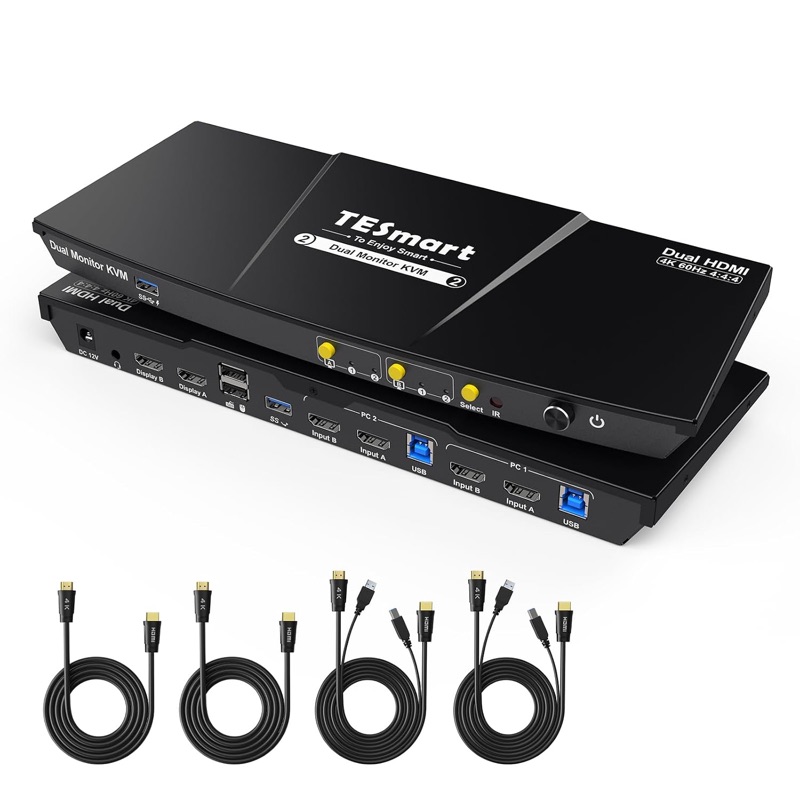
Dual-HDMI 4K60 model with USB 3.0. Retailer image shows front and rear views of one switch. Monitor-output HDMI cables are additional.
Check it out: TESmart HKS202-P23 on Amazon.de (opens a new tab)Image: TESmart / Amazon.de product listing
Affiliate links may earn us a commission. Compare the exact variant and current price before buying. Specifications are manufacturer claims, not our own test results.
Share the equipment you already use
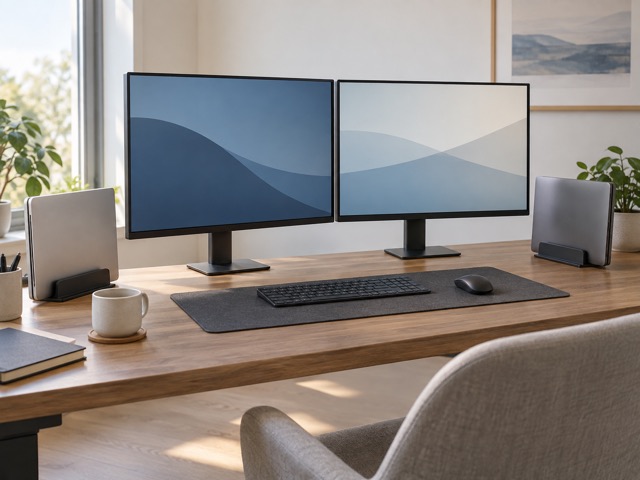
A KVM moves shared screens, keyboard and mouse between computers. It can suit a desk with separate work and personal machines, keeping the familiar display arrangement without reconnecting accessories each time.
This model handles two HDMI monitors. Before ordering, list the exact video outputs on both computers and the inputs on both displays. A matching connector is only the first check; resolution and refresh-rate support must also match.
Two screens need two video signals
Each computer needs two video connections to the switch, plus USB for its peripherals. The KVM routes those signals; it does not create a second independent display from a computer that supports only one.
A laptop may need a compatible dock or adapters first. Check that complete path with the laptop manufacturer, especially for machines with restricted external-display support. The front charging port is for small devices, not a replacement for a laptop power supply.
Pick a switching mode
You can put both screens on one computer or show one computer on each screen. In the shared view, keyboard, mouse, USB and audio focus need attention so you know which machine receives an action.
The manual limits EDID emulation to the first mode. This feature helps preserve display information, but should not be treated as a guarantee that every window arrangement survives every dock, sleep state or mixed-computer configuration.
Budget for the complete cable route
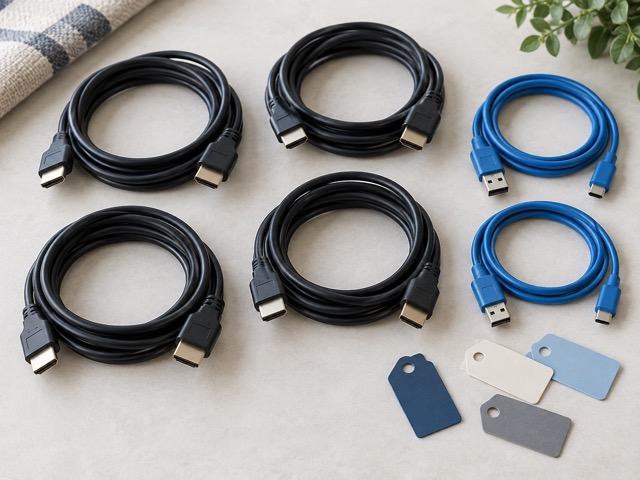
The package includes two combined KVM cables and two separate HDMI cables for the computer side. You still need two HDMI cables from the outputs to the monitors. Label each computer’s pair before routing them under the desk.
Connect Bluetooth-only keyboards directly to their computers or choose an appropriate USB receiver arrangement; the switch itself is not a Bluetooth hub. Test specialist keyboards, high-polling mice and other demanding USB accessories within the seller’s return period.
A useful fit for a fixed workstation
HKS202-P23 is worth considering for two established HDMI workstations running up to dual 4K60. The physical switching options and shared peripherals are its central benefits, rather than a promise of extra graphics capability.
Choose a different solution for a single-cable laptop setup, more computers or display modes beyond the documented specification. Confirm the exact P23 revision before purchase: newer product pages can describe revised hardware under a similar family name.
Technical details
Specifications and compatibility.
| Specification | Details |
|---|---|
| Computer inputs | 2 computers |
| Monitor outputs | 2 HDMI displays |
| Video connections per computer | 2 HDMI inputs plus a USB data connection |
| Maximum documented display mode | 3840 × 2160 at 60 Hz, 4:4:4 |
| HDMI / content protection | HDMI 2.0; HDCP 2.2 |
| Display mode 1 | Both screens from one computer; extend or duplicate in computer settings |
| Display mode 2 | A different computer on each screen |
| EDID emulation | Manufacturer manual limits this feature to display mode 1 |
| Peripheral sharing | USB keyboard, mouse and USB 3.0 devices |
| Host USB cabling | USB-A at computer to USB-B at KVM |
| Dedicated controls | Keyboard and mouse ports with pass-through mode |
| Bluetooth peripherals | No direct Bluetooth pairing to the KVM |
| Audio | Combined microphone and left/right audio connection |
| USB / audio focus | Can switch separately in display mode 2 using supported hotkeys |
| Switching methods | Front buttons, keyboard hotkeys, IR remote and supported mouse control |
| Front USB charging | BC 1.2; retailer specifies up to 7.5 W |
| Power | External 12 V DC adapter |
| Included computer cables | 2 combined HDMI/USB KVM cables and 2 HDMI cables |
| Additional monitor cables | 2 suitable HDMI cables needed from KVM to screens |
| Laptop charging | Not a USB-C Power Delivery laptop dock |