
3 perspectives. One decision.
Logitech MX Master 4 vs Razer Pro Click V2 vs Keychron M6
Compare scrolling, shortcuts, wired operation and hand fit across three right-handed mice, including the exact 1,000 Hz Keychron M6 listing.
Researched · Specification comparison
The short answer
MX Master 4 is the shortlist choice for Logitech’s shortcut tools and haptic feedback. Pro Click V2 suits a mixed work-and-gaming setup with wired operation and a 1,000 Hz report rate. M6 offers a separate thumb wheel and three connection modes in a lighter body, but confirm the supplied revision: its Amazon page mixes newer and older specifications.
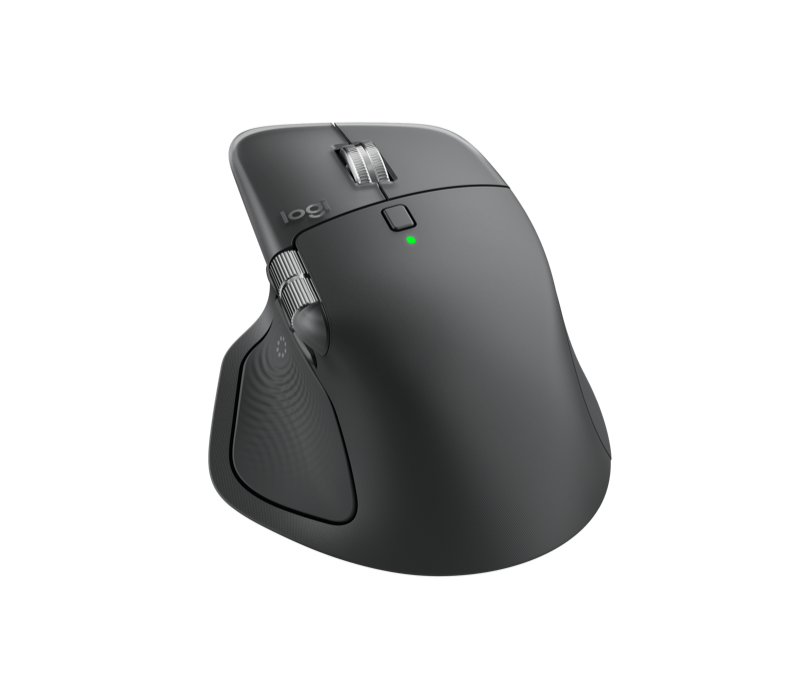
For application shortcuts
Logitech MX Master 4
Universal Graphite edition with USB-C Logi Bolt receiver. Haptics and Actions Ring customization.
Check it out: Logitech MX Master 4 Ergonomic Wireless Mouse on Amazon.de (opens a new tab)Image: Logitech
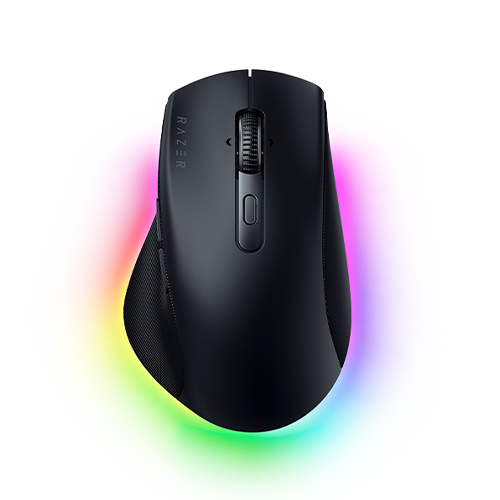
For work and play
Razer Pro Click V2
Standard black V2, not Vertical Edition. Tilt scrolling and wired or wireless use.
Check it out: Razer Pro Click V2 on Amazon.de (opens a new tab)Image: Razer
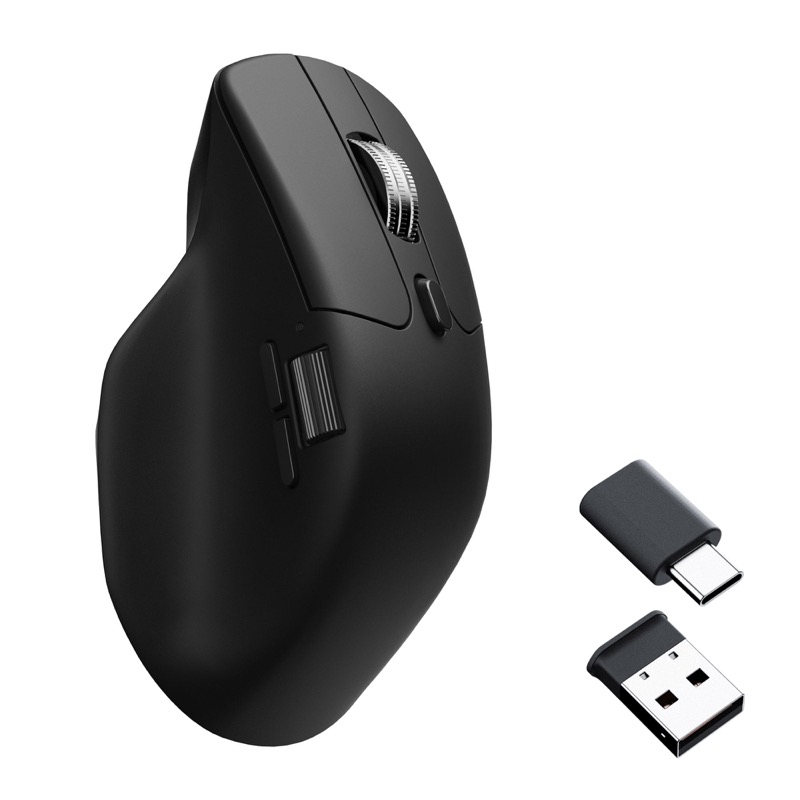
For lighter dual-wheel control
Keychron M6 · 1K
Black 1,000 Hz PixArt 3395 listing. Thumb wheel and three connection modes; check the supplied revision.
Check it out: Keychron M6 on Amazon.de (opens a new tab)Image: Keychron
Affiliate links may earn us a commission. Compare the exact variant and current price before buying. Specifications are manufacturer claims, not our own test results.
Match the mouse to the task you repeat
Think about the action that interrupts your work most often. It might be moving across a wide spreadsheet, changing tools in an editor, switching between computers or dragging objects accurately. A mouse is useful when its shape and controls make that action easier. A larger sensor number alone does not answer any of those questions.
MX Master 4 puts emphasis on application shortcuts and haptic feedback. Pro Click V2 combines a work-oriented shape with features familiar from gaming mice. M6 offers a thumb wheel and flexible connections in a comparatively light design. All three are shaped for the right hand. None should be treated as a universal answer for hand comfort.
Two ways to move across a wide page
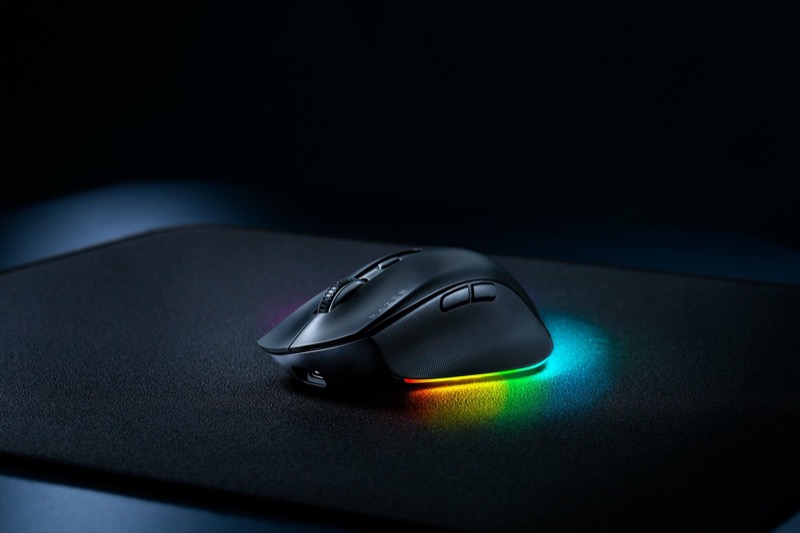
Logitech and Keychron provide a separate thumb wheel for horizontal movement. That can be useful when following spreadsheet columns or moving through a timeline while leaving the main wheel available for vertical scrolling. Razer instead offers tilt on its main wheel. The right arrangement depends on which movement feels natural and how your application interprets it.
The main wheels can switch between defined steps and freer spinning. Defined steps help when you want to move a small, repeatable amount; free spinning is useful for covering a long document quickly. Try both in the application you spend time in. Scroll acceleration and application settings can change the feel as much as the hardware mode.
Shortcuts are valuable when the software fits
MX Master 4’s Haptic Sense Panel provides feedback for supported actions. Actions Ring puts configured tools near the pointer. The advantage is practical if you repeatedly reach for the same editing commands, but it depends on setting up the shortcuts and using compatible software. Logitech’s customization application is available for Windows and macOS; do not assume every feature follows the mouse onto every operating system.
Razer exposes its programmable controls through Synapse 4, including its AI Prompt Master shortcut feature. That is access to configured tools, not a guarantee that the mouse itself performs AI work. Keychron supports remapping and macros, with Launcher or Engine requirements varying by revision. Check support for your exact mouse and operating system, especially on a company-managed computer.
Wired use and charging are different things
Pro Click V2 and M6 can send mouse input over a USB cable as well as use wireless connections. That is useful if you want a wired fallback or cannot use a radio connection in a particular setup. MX Master 4 charges over USB-C but continues to communicate wirelessly. Keep Bluetooth or its receiver connected while charging.
The Logitech catalogue entry is the universal edition with a USB-C Logi Bolt receiver. Check the available port on your computer or dock rather than assuming an older USB-A receiver is included. Razer supports three Bluetooth hosts alongside its receiver and wired connection. Being able to select several devices is different from controlling them all simultaneously.
Do not turn DPI or battery claims into a score
DPI describes how much pointer movement results from a physical movement at a given setting. A higher maximum can be useful in some setups, but it does not mean text selection becomes more accurate. Choose a comfortable sensitivity first. Razer and the approved M6 support up to 1,000 Hz reporting through their receiver or cable; the connection mode matters.
Logitech advertises up to 70 days and Razer up to 3.5 months, with their own usage assumptions. These are not results from a shared battery test. Lighting, haptics, connection type and activity can affect runtime. We do not rank these mice by converting advertised months into hours, or assume maximum reporting rates and maximum endurance occur together.
Check the M6 revision before you order
The approved M6 link specifies a black, 1,000 Hz PixArt 3395 mouse. At our check, the Amazon title said 86 g and the main image showed a metal main wheel. However, older material on the same page still listed 78 ± 3 g and Bluetooth 5.1. Keychron’s current product family includes multiple sensors, wheel types and switch options under the M6 name.
The manufacturer separately lists an older 78 g 3395 1K version and newer 86 g metal-wheel versions. We use the image matching the live listing and keep the conflicting weight information visible. Confirm the seller’s supplied wheel, switches and revision if those details matter to you. Do not copy battery life or glass-tracking claims from an 8K or 3311 model into this comparison.
Make room for the mouse and your hand
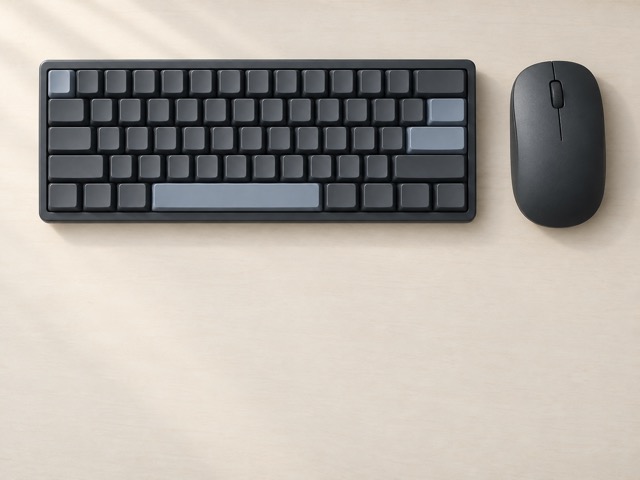
The mouse should sit where you can reach it without pushing the keyboard unnecessarily far away. Check the height of the body, the thumb rest and whether you can operate the side controls without changing your grip every time. The nominal weights give some context, but they cannot tell you how a shape will feel during a long session.
A compact keyboard can leave more space for the mouse, particularly on a narrow desk. Try realistic tasks: drag a window, select several lines, scroll sideways and reach the buttons. Ergonomic marketing is not a promise of pain relief. If the mouse feels awkward, a different size or shape can matter more than keeping a particular feature.
Our shortlist for three different working styles
Start with MX Master 4 when your priority is configurable shortcuts, a dedicated thumb wheel and the Logitech software workflow. Start with Pro Click V2 when you want one mouse for office tasks and gaming, with a true wired fallback. Start with M6 when low weight and dual-wheel control are the attraction, provided you resolve the listing’s revision details.
Compare the exact merchant selections and their current prices after deciding which controls you need. We have not measured click latency, durability or comfort in a controlled test. The recommendations here follow documented features and the checked listing details. A short trial in your normal applications is more useful than selecting the longest specification list.
Side by side
The differences that matter.
On smaller screens, swipe across the table to compare all products.
| At a glance | Logitech MX Master 4 | Razer Pro Click V2 | Keychron M6 · 1K |
|---|---|---|---|
| Handedness | Right-handed | Right-handed | Right-handed |
| Connections | Bluetooth or Logi Bolt receiver | 2.4 GHz receiver, Bluetooth or USB-C wired | 2.4 GHz receiver, Bluetooth or USB-C wired |
| Main scrolling | MagSpeed ratchet and free-spin modes | HyperScroll tactile and free-spin modes; tilt | Tactile and infinite-scroll modes; tilt |
| Separate thumb wheel | Yes | No; uses main-wheel tilt | Yes |
| Maximum sensor sensitivity | 8,000 DPI | 30,000 DPI | 26,000 DPI for the approved 3395 version |
| Headline shortcut feature | Haptic Sense Panel and Actions Ring | Nine programmable buttons; Synapse customization | Programmable buttons and macros |
| USB cable carries mouse input | No; charging while wireless | Yes | Yes |
| Published or listed weight | 150 g, manufacturer | 110 g, manufacturer | 86 g in listing title; older page table says 78 ± 3 g |
| Advertised battery guidance | Up to 70 days | Up to 3.5 months under standard test conditions | Revision-dependent; older and newer figures differ |
| Configuration software | Logi Options+ on Windows and macOS | Razer Synapse 4; check device support on your OS | Keychron Launcher or Engine, depending on revision |
| Exact version to check | Universal USB-C Bolt edition | Standard Pro Click V2, not Vertical | Black 1K PixArt 3395, not 3311 or 4K/8K |
A little more context
How to improve a home technology workspace
Fix positioning, connections and daily friction before adding more devices.