
Webcams · Product spotlight
Elgato Facecam MK.2: build a deliberate video-call setup
Full HD video with manual image controls. Plan the lighting, USB connection and microphone as one setup.
Researched
Our recommendation
A useful choice for a fixed desk where you want control over exposure and framing. Choose it for 1080p60 and Camera Hub adjustments, with a separate microphone; it is less suited to close-up product demonstrations.
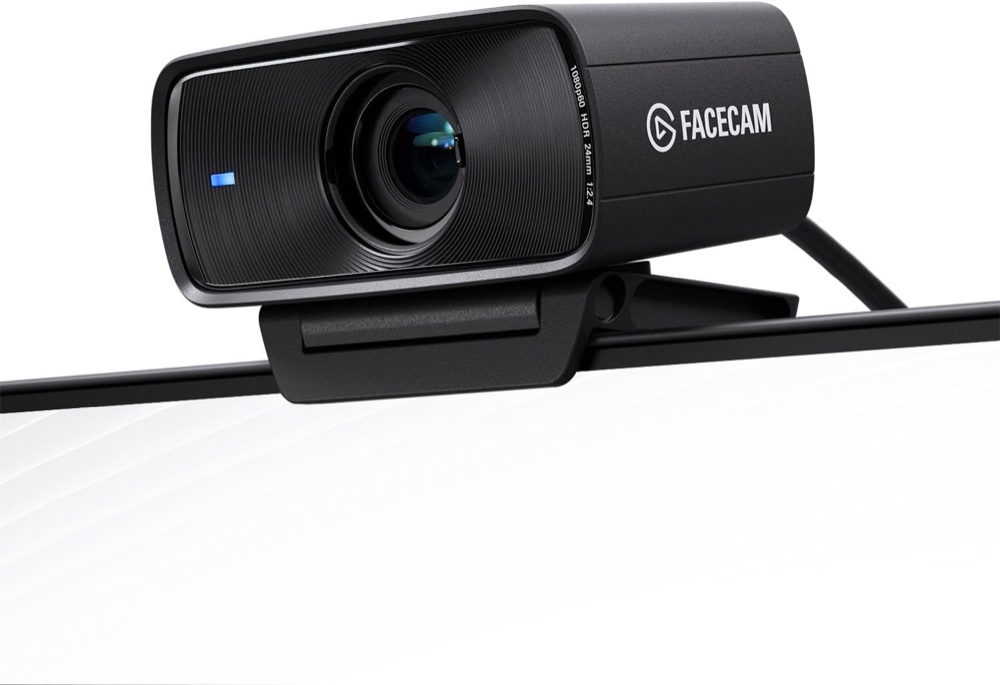
One black MK.2 Full HD webcam with mount and USB cable. The pictured monitor is not included; the 4K option is a different product.
- Maximum Full HD mode
- 1920 × 1080 at 60fps; SDR or HDR
- Focus
- Fixed; optimised for 30–120cm
- Microphone
- None; separate audio input required
Affiliate links may earn us a commission. Check the exact variant and current price. Specifications are manufacturer claims, not our own test results.
Start with your sitting position
Facecam MK.2 has fixed focus, designed around a subject 30–120cm from the lens. Measure from the camera to your normal seat before choosing it. A stable desk position is a better match than repeatedly holding small objects close to the lens.
This is the black Full HD MK.2 selected by the catalogue link. The adjacent Facecam 4K listing is a different model. Amazon’s generic f/2.8 table entry conflicts with Elgato’s f/2.4 specification.
Give the camera useful light
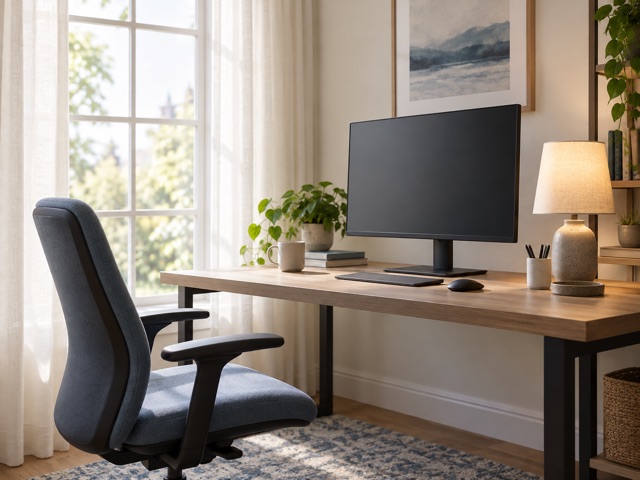
Try facing a window or placing soft light in front and slightly to one side. A bright window directly behind you makes exposure harder. Camera Hub provides exposure and white-balance adjustments, while HDR can help balance a scene with bright and dark areas.
Those controls are options, not proof of better results in your room. We have not measured image quality or latency. Check the picture in your actual calling app after adjusting the lighting.
Check the full USB route
Use a direct USB 3.0 connection for uncompressed video. A USB-C socket alone does not establish its speed, and USB 2.0 uses MJPEG compression instead. Elgato’s setup guide advises against a hub, so plan a spare computer port.
The current manufacturer pack includes a USB-C-to-C cable; older support describes a USB-A connection. Check the cable supplied with the retailer’s stock and whether your computer needs an adapter. A charging-only cable will not carry video.
Treat sound as a separate choice
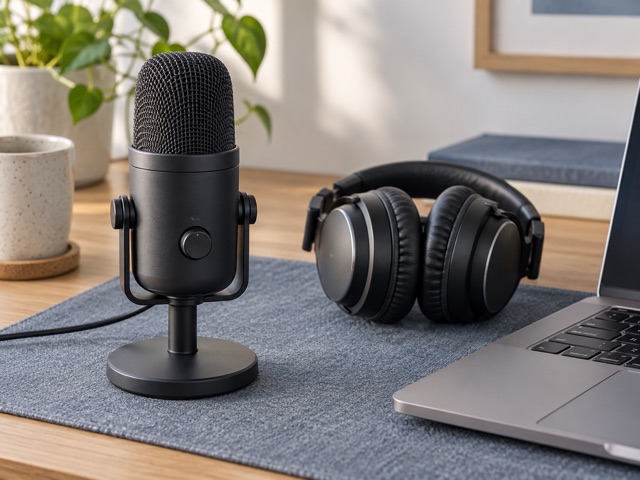
There is no built-in microphone. Select a laptop microphone, headset or separate desk microphone in your calling software; selecting Facecam for video does not select an audio source. Check both settings before the first meeting.
The supporting image illustrates optional audio equipment, not included accessories. The lens shutter closes the view, but it cannot mute another device’s microphone. Use your calling app’s audio control when you want silence.
Buy control rather than excess resolution
The case for this webcam is a deliberate 1080p desk setup. Digital pan, tilt and zoom crop the image; they are not optical zoom or a moving camera head. Video-call software may also limit the resolution or frame rate others receive.
Use the current Windows 11 or macOS 13.3 requirements when planning Camera Hub. Older hardware support pages list lower minimums. A simple all-in-one webcam may suit you better if extra software and separate audio feel unnecessary.
Technical details
Specifications and compatibility.
| Specification | Details |
|---|---|
| Maximum Full HD mode | 1920 × 1080 at 60fps; SDR or HDR |
| Focus | Fixed; optimised for 30–120cm |
| Microphone | None; separate audio input required |
| Linked model | Black Facecam MK.2; ASIN B0CW1S7XP5 |
| Standard video modes | 1080p60/30, 720p60/30, 540p60/30 |
| High-frame-rate modes | 720p120 and 540p120 listed in model-specific support; omitted from current store/QSG mode list |
| HDR limitation | HDR is disabled at 720p120, per Elgato support |
| Sensor | Sony STARVIS CMOS, 1/2.5-inch |
| Lens | Elgato Prime Lens; f/2.4 |
| Equivalent focal length | 24mm, full-frame equivalent |
| Field of view | 84° diagonal |
| Video transport | Uncompressed over USB 3.0; MJPEG compression over USB 2.0 |
| Camera connector | USB-C; UVC 1.5 |
| Computer connection | Direct USB 3.0 or faster recommended; manufacturer says not to use a hub |
| Image controls | Camera Hub exposure, white balance, processing and digital pan/tilt/zoom |
| Zoom limitation | Digital crop; no optical zoom or motorised tracking head |
| Privacy | Integrated sliding lens shutter |
| Mounting | Monitor mount; standard 1/4-inch thread |
| Body dimensions | 84 × 38 × 61mm without mount |
| Weight | 90g without mount; 136g with mount |
| Current recommended host | Windows 11+ on Intel/AMD; macOS 13.3+ on Intel/Apple silicon |
| Older support minimum | Legacy MK.2 pages list Windows 10 / macOS 12; current store requirements are higher |
| Included cable | Current manufacturer pack: 1.8m braided USB-C to USB-C; older support describes USB-A host connection; confirm supplied cable |
| Additional items | Microphone or headset; USB-A adapter if needed; tripod/boom arm and monitor separate |
| Software / saved settings | Camera Hub download; supported camera settings can be saved on the device |
A good fit if…
You sit at a consistent desk distance, want manual picture controls and already have a suitable microphone and direct USB connection.
Keep in mind
No microphone or autofocus. Digital cropping reduces detail, older software requirements differ, and USB 2.0 cannot provide the uncompressed output.